My shell configuration
For years, I kept things simple, using the built-in macOS Terminal, with oh-my-zsh, and not much else. It worked well enough day-to-day.
Over time though, I have found a handful of small improvements that add up. Quicker navigation, better defaults, and a setup that’s easy to move across machines. This post is a brief overview of how I organise my shell configuration.
It’s not meant to be prescriptive, just a practical starting point if you’re thinking, “my .zshrc is getting a bit… long”.
Terminal emulator
I’ve hopped around a few terminal emulators over the years: the default macOS Terminal app, then Warp for a while, some experimenting with iTerm2, and finally landing on WezTerm.
WezTerm is a cross-platform terminal emulator (and multiplexer) written by @wez. It’s configured in Lua, which means you can make it as minimal or as customised as you like. The initial setup is a bit of a time investment, but I’ve found it’s paid off in day-to-day productivity.
The main things I value:
- Fast pane and tab management (split, resize, move, close) via keyboard shortcuts
- A custom status bar with a few bits of at-a-glance info (time, battery, connectivity, etc.)
My wezterm.lua is here:
If you’re new to it, the official docs are the best place to start:
Shell
With the terminal itself sorted, the rest is mostly about how I structure my zsh config.
The guiding principle is simple:
Keep
.zshrcsmall, and source everything else from a dedicated folder.
That way, instead of one giant file, I’ve got a small set of focused scripts (aliases, exports, functions, installs). They are easier to skim and update.
The sourcing loop
At a high level, my .zshrc uses a simple loop to source each script from ~/shell:
# Run scripts defined in ~/shell directory
for file in "$HOME"/shell/*.sh; do
  if [ -f "$file" ]; then
    source "$file"
  fi
done
Nothing groundbreaking, but it keeps things modular. Each file does one job, and you can add or remove pieces without worrying about breaking the whole thing.
Glob order is typically alphabetical. If you ever need a strict load order, prefix filenames with numbers (e.g. 00_exports.sh, 10_aliases.sh).
Folder structure
My shell configuration lives in a shell directory, roughly like this:
📁 shell/
├── 📁 aliases/
├── 📄 functions
├── 📄 installs
├── 📄 exports.sh
└── 📄 load.sh
(You can browse the real thing here: https://github.com/ThomasHepworth/PersonalDevTools/tree/main/shell-configs)
A breakdown of each component
📁 Aliases
The aliases directory contains multiple files, each covering a small category. For example, I keep Git aliases separate from Docker aliases, and both separate from general utilities.
That makes it easy to:
- add a new “bucket” of aliases without clutter
- temporarily remove a group if I’m testing something
- find things quickly later
Aliases folder:
📁 Functions
The functions directory contains custom shell functions I use often. These are mostly small helpers: shortcuts for common directories, quick Git helpers, or little wrappers around tools I use a lot.
I prefer functions for anything that:
- needs arguments
- benefits from a bit of logic
- is more than a one-liner
Functions folder:
📁 Installs
The installs directory is where I keep the “setup” side of things: installing or configuring tools and plugins. I cover some of these in more detail in:
This includes things like:
zsh-autosuggestionszsh-syntax-highlightingfzf
Keeping installs separate helps keep the day-to-day config readable, and it makes migrating to a new machine much faster: copy the directory, run installs, and you’re most of the way there.
Installs folder:
📄 Exports.sh
exports.sh is where I define environment variables: PATH additions, tool configuration flags, and anything I want available everywhere.
I keep this file boring on purpose. It should be safe to source repeatedly, and easy to scan.
Exports file:
📄 Load
Finally, load.sh is a bit of a “utility” script. It’s responsible for loading any extra config and also includes helpers that make my setup easier to understand.
One of the things it does is provide a quick way to list the functions or aliases defined inside a file.
For example, this helper scrapes definitions out of sourced scripts:
# Function to list contents of a script file based on type (aliases or functions)
function display_script_definitions() {
  local script_file="$1"
  local content_type="$2"  # either 'aliases' or 'functions'

  if [[ "$content_type" == "aliases" ]]; then
    echo "Aliases defined in $script_file:"
    grep '^alias' "$script_file"
  elif [[ "$content_type" == "functions" ]]; then
    echo "Functions defined in $script_file:"
    grep '^function ' "$script_file" | awk '{print $2}' | cut -d '(' -f 1
  else
    echo "Invalid content type specified. Please choose 'aliases' or 'functions'."
  fi
}
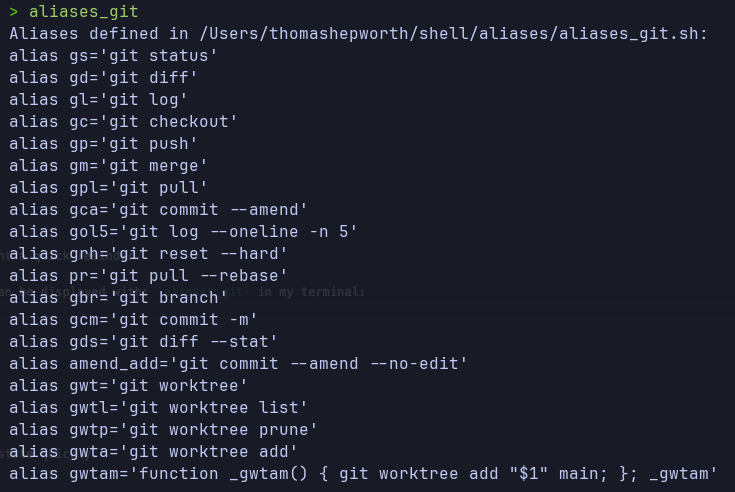
That lets me run simple commands (based on filenames) to quickly see what’s available. It’s handy when you’ve not looked at a particular alias file for a while and just want a quick reminder.
For example, any aliases listed within the file aliases_git.sh can be displayed with: aliases_git in my terminal:
This is intentionally lightweight. It’s “good enough” for my own conventions, rather than trying to build a perfect parser for every shell edge case. Often I simply need a nudge or quick list, rather than a full audit.
Load file:
Conclusion and links 🔗
This modular approach has served me well. It keeps things tidy, makes it easier to find and update specific settings, and means I can get a new machine into a comfortable state quickly.
If you want to take a look at the full setup, here are the key links:
- Shell configs root: https://github.com/ThomasHepworth/PersonalDevTools/tree/main/shell-configs
- My
.zshrc: https://github.com/ThomasHepworth/PersonalDevTools/blob/main/shell-configs/.zshrc - WezTerm config: https://github.com/ThomasHepworth/PersonalDevTools/blob/main/shell-configs/wezterm/.wezterm.lua
- Other dotfiles: https://github.com/ThomasHepworth/PersonalDevTools/tree/main/shell-configs